Sanitized local captures
Dated visual tour
Every capture is local, sanitized, and dated. It is a visual example only, never current proof of operational status.
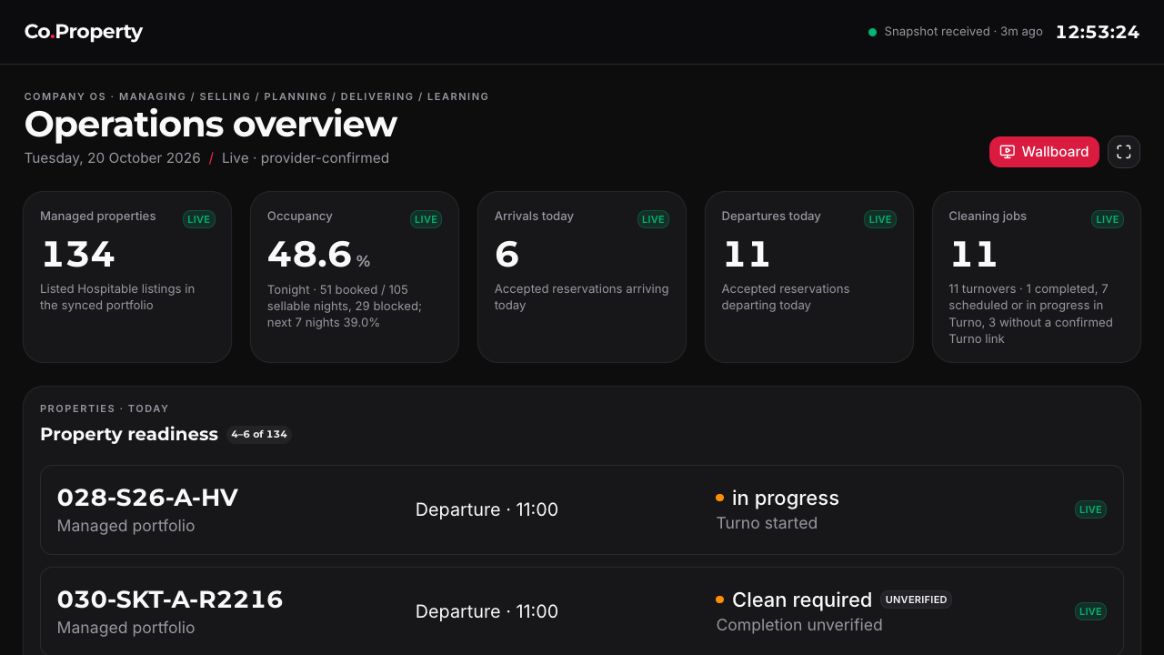

Operations overview: locate today’s work, then inspect support
The operations overview screenshot shows a shared daily picture: arrivals, departures, turnovers, and exceptions.
Read the details
The operations overview screenshot shows a shared daily picture: arrivals, departures, turnovers, and exceptions. Use it to orient the operating day, then follow the relevant record and responsible person.
A cleaning job marked complete is not automatically a verified property-ready decision. Read the observation time and evidence label before treating a visual status as current or accepted.
- Current
- Checked — this is a dated installed-app example captured on 20 October 2026, not a statement of current values.
- Proposed next state
- Keep a caption and source boundary if the image is ever replaced with a newly approved sanitized capture.
- Expected outcome
- The screen helps a reader find a task without erasing the evidence and verifier questions.
Checks to include when changing this section
- Check local image path, descriptive alt text, and dated caption.
- Check the turnover page remains the focused link for evidence and readiness details.
Data health, reports, and admin: inspect confidence before acting
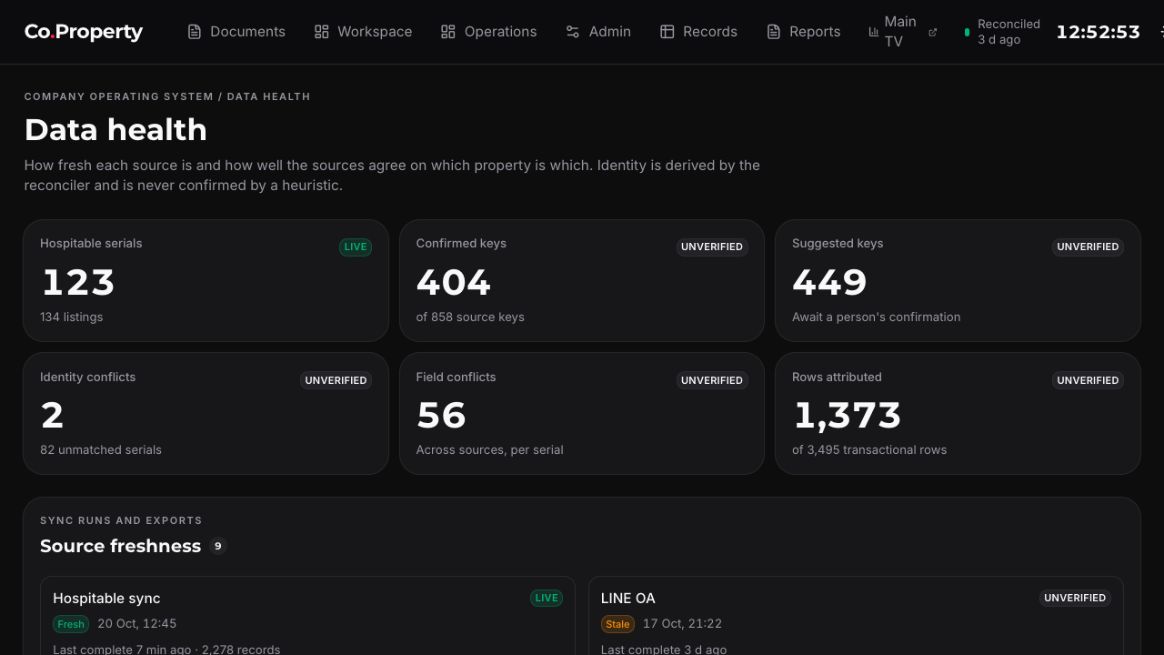
The data-health screenshot helps illustrate why source labels and identity confidence matter.
Read the details
The data-health screenshot helps illustrate why source labels and identity confidence matter. It is a dated example, so it cannot prove current freshness or reconciliation. Use it to ask whether the relevant source window was read completely and published successfully.
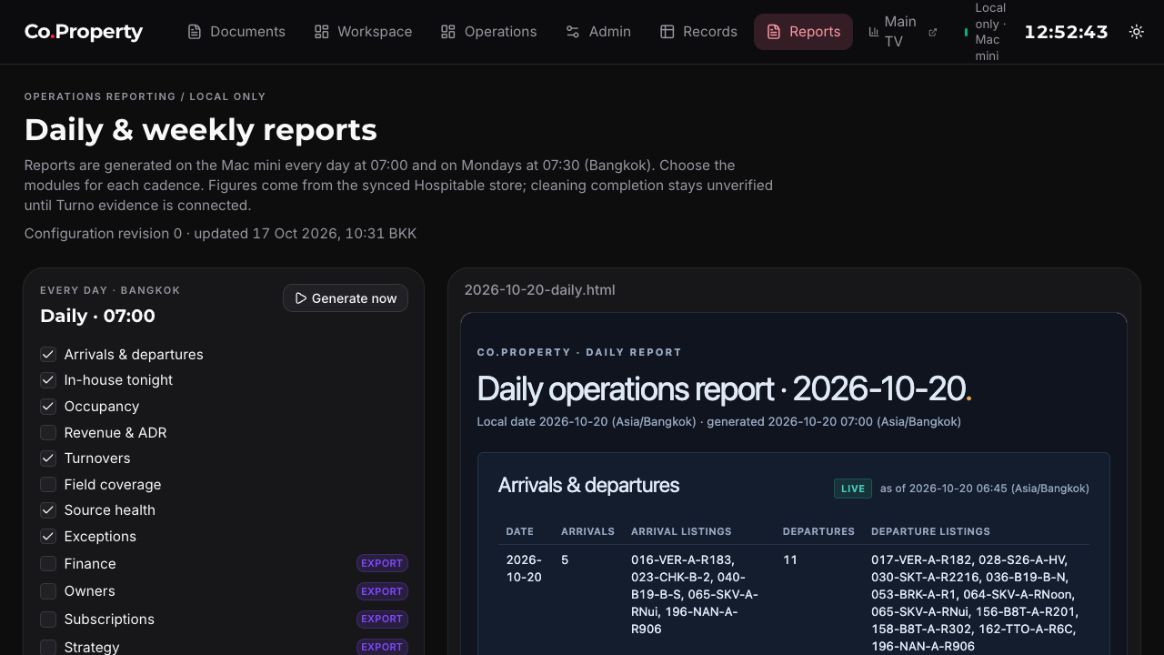
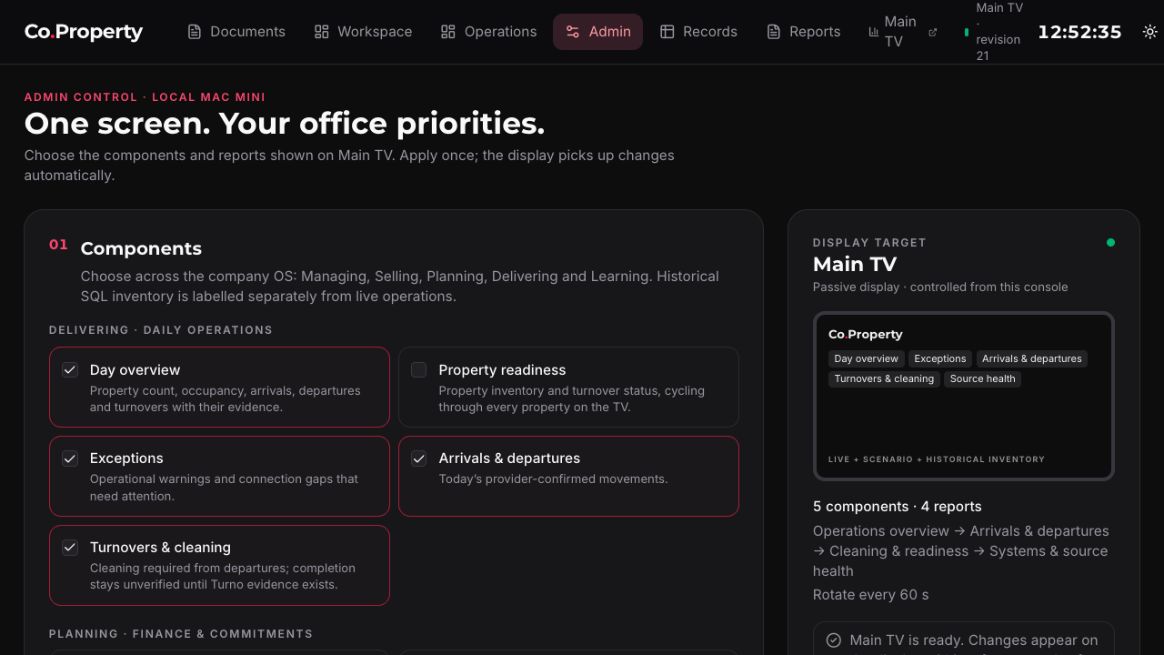
Report and admin screens can contain high-consequence actions or internal information. Treat them as carefully scoped surfaces: current approval, record context, and a reviewed change path matter more than a familiar layout.
- Current
- In progress — provider freshness and all live acceptance labels require current evidence, not a screenshot.
- Proposed next state
- Add a newly sanitized dated capture only when it improves a specific safe question and preserves access boundaries.
- Expected outcome
- A reader uses visual cues to investigate confidence rather than making a completion claim.
Checks to include when changing this section
- Check no screenshot caption claims live health, freshness, or completed acceptance.
- Check search and visual controls remain keyboard-operable with images present.
Screens are an invitation to ask the next question
A screen can show what to investigate.
Read the details
A screen can show what to investigate. It cannot make a provider source fresh, make an identity confirmed, or make a verifier accept a result. Use labels, dates, and record links as signals to follow the process described elsewhere in the wiki.
The only copied images in this site are the approved sanitized JPGs in this tour. No internal evidence, QA artifacts, databases, credentials, or private logs are included.
- Current
- Checked — the visual documentation boundary is explicit and uses only approved local assets.
- Proposed next state
- Keep screenshots visual and explanatory; keep sensitive operational material in its authorised system.
- Expected outcome
- The tour stays shareable inside the intended audience without becoming an evidence or credential archive.
Checks to include when changing this section
- Check the public asset tree contains only the five approved JPG screenshots for this tour.
- Check generated exports have no runtime-log or private-evidence references.
Apply with care
A concrete safe example
Example, responsibilities & checklist
Read a screen without overclaiming
If an operations card says a cleaning task is completed, ask whether evidence and verifier acceptance are also present. If data health says a source is recent, ask whether the relevant source window was read completely and published successfully.
Responsibilities
- Readers treat screenshots as visual orientation only.
- Documentation maintainers retain captions, dates, alt text, and sanitisation boundaries.
- Operators open approved live records for current facts.
- Contributors run browser and mobile checks if screenshot layout changes.
Checklist
- Read the screenshot date and caption before using it as an example.
- Never infer a live value, access right, or accepted decision from a screenshot.
- Use local approved JPGs only; do not embed external media or private captures.
- Check alt text and responsive display on desktop and mobile.
A reader can identify an operational, planning, data-health, report, or admin surface and know which evidence question matters next.
Traceability without sensitive material
Source pointers and exports
This page expands the approved handoff into plain-language guidance. It does not include runtime logs, credentials, databases, private evidence, internal QA artifacts, or developer planning history.
Documentation references
- Handoff / pages/app-tour.html
- Handoff / START-HERE.html